
How it works
From entering your Hangul name to choosing a style, checking the preview and saving a transparent PNG. Follow the steps and find help for common problems.
On this page
1. Check the name and optional suffix
Type or paste Hangul or supported Hanja; names are not automatically translated or transliterated. Personal seals with 2–3-character names can add a suffix, so avoid typing it twice. Enter in the name field does not create the final image.
2. Choose shape and engraving for the text length
Circle/ellipse accept 1–4 characters, square/rounded-square 1–16, and approval seals 1–2. Compare clean and handmade styles. Positive engraving colours the letters; negative engraving colours the surrounding field.
3. Compare samples and choose a font
Use the All/Hangul/Hanja filters and style groups. Samples use prepared text, not your name. Even Hanja-capable fonts may lack individual characters; check the actual preview.
4. Wait for the preview and check the text
When the loading placeholder finishes, check the name, suffix, shape and engraving. The preview watermark is not a visible mark in the final PNG. If an error appears, correct the indicated character or option before retrying.
5. Create and save the final PNG
Press Create when your choices are ready. Check the result summary and use Save PNG. Sharing support and download locations vary by browser and device; if sharing is unavailable, save the file and attach it yourself.
6. Insert it and check the submitted document
Insert the original PNG over (인) using your document app’s picture tool; follow the relevant guide below. Editing again keeps your choices in the same tab. Input and results are temporary and may become unavailable if browser session data is removed, so save any PNG you need.
Add your stamp to a document
Place the stamp over the (인) seal mark beside the name. Its transparent background keeps the document visible. Resize proportionally to fit the signature area.
Hancom HWP
Insert the PNG with Insert → Picture. In object properties, turn off inline placement and choose In Front of Text to place it over a signature field.
Read guideMicrosoft Word
Insert the PNG using Insert → Pictures. Choose In Front of Text in Layout Options, then resize from a corner while keeping its proportions.
Read guideMicrosoft Excel
Use Insert → Illustrations → Pictures. Move the image to the signature field, keep its proportions when resizing, and check Print Preview.
Read guidePDF document
Check whether your PDF app supports image insertion. Acrobat Reader creates custom stamps from PDF only, which differs from inserting a PNG. Reopen the saved file to check.
Read guideAlready have a stamp photo?
Make the background transparent
Scanned or photographed a stamp on paper? Remove the paper background and save a transparent PNG for your documents.
If your insurance claim allows an image of your usual stamp in the paperwork, try removing the background from a photo. Check the insurer's document requirements before submitting.
Remove a stamp photo backgroundPhotos stay on your device, without uploading.
 Stamp photo
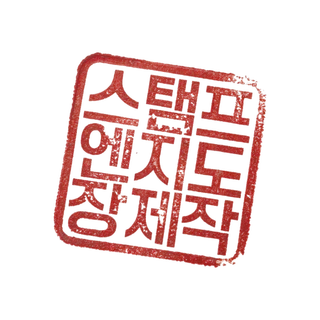 Transparent PNG
Want to make your own stamp?
Choose a name in Hangul, a shape and a font. Then download your transparent PNG.